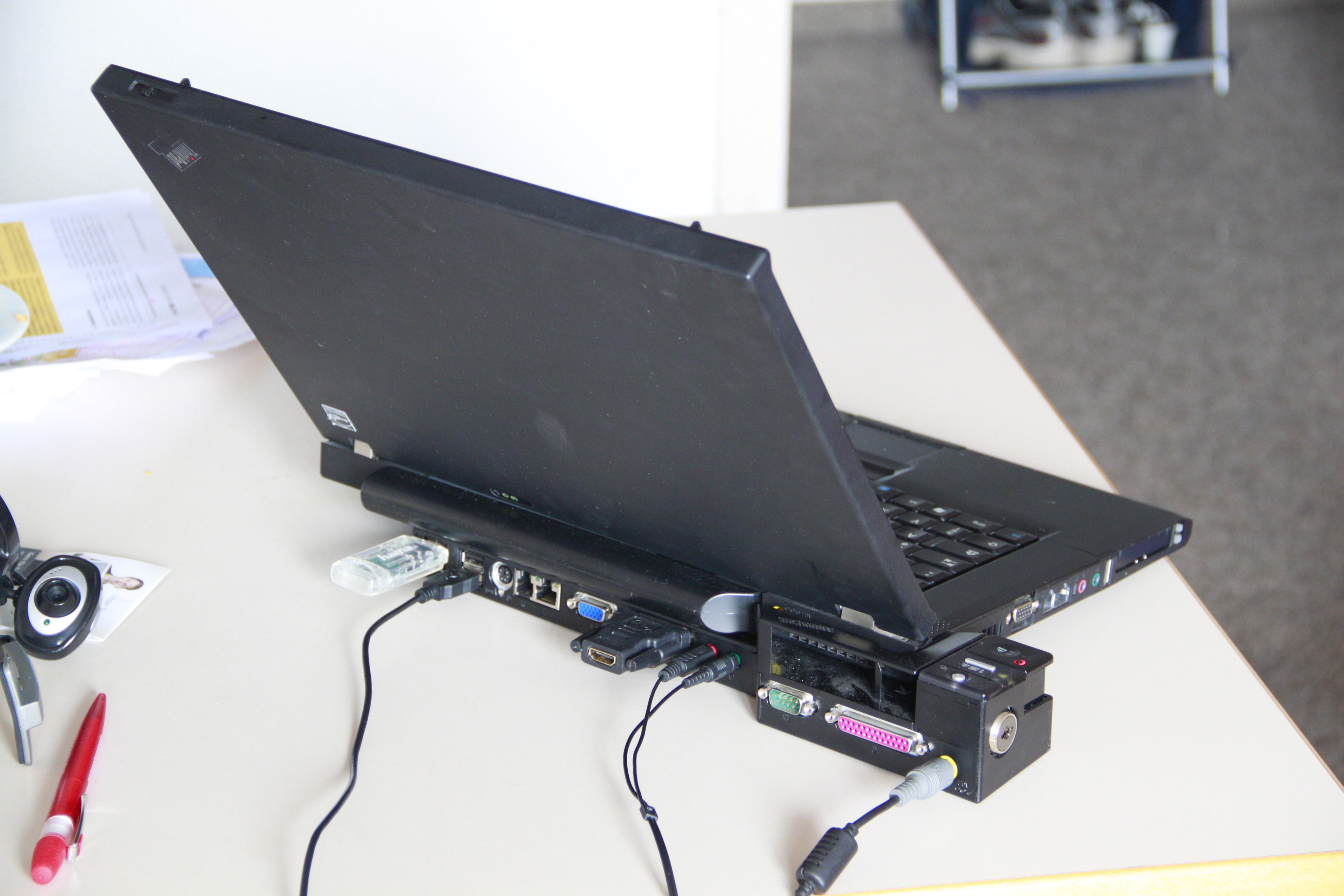
Picture the end of a commute: you drop your laptop on the desk, plug in a single cable, and the machine wakes up already wired to two or three large panels, a mechanical keyboard, wired Ethernet, and a fast external SSD. The lid can stay closed or propped open. Nothing else gets touched. That one-cable choreography is the entire promise of a docking station, and when it works it feels close to magic.
The fine print is where people get burned. The number of screens a dock can actually drive has surprisingly little to do with how many video ports are stamped on the back of the box. It depends on the chip inside your laptop, the protocol the dock uses to shuttle pixels, and a single unforgiving rule about graphics hardware that no amount of marketing can bend.
Sort out three things and the confusing part of the purchase collapses into a short checklist: the way your dock moves video, the meaning of the connector badge on the front, and the display ceiling baked into your specific computer. Here is each one, in plain terms.
The one cable, and the three ways it moves pixels
A dock is a splitter with ambitions. It takes one high-bandwidth USB-C or Thunderbolt port from your laptop and fans it out into many jacks: HDMI, DisplayPort, USB-A, Ethernet, an audio combo, sometimes an M.2 slot. Power flows back up the same cable to charge the machine. The interesting question is how the video gets to your monitors, because docks use one of three methods, and they behave very differently.
The first is native output, sometimes called DisplayPort Alt Mode on a plain USB-C link or protocol tunneling over Thunderbolt. Your laptop's own GPU renders the image and the signal simply rides the cable to the dock, which hands it to a monitor at full quality. This path supports copy protection and fast-motion gaming, and it looks exactly as good as plugging a display straight into the laptop. Its ceiling is the number of independent outputs your GPU was designed to produce.
The second is Multi-Stream Transport (MST), which packs several monitor feeds into one DisplayPort stream and lets the dock split them apart. It is a Windows feature; per Plugable's technology comparison, macOS does not support MST at all. On a modern Windows laptop with DisplayPort 1.4 and Display Stream Compression, MST can carry demanding formats such as 4K at 120Hz.
The third is DisplayLink, and it works on a different principle entirely. A chip in the dock takes video generated in software, compresses it, and sends it over an ordinary USB data connection, where a driver on your computer decompresses it. Because it rides regular USB rather than a dedicated video lane, DisplayLink can add monitors on machines that have run out of native outputs, and it runs on Windows, macOS, and ChromeOS. The trade-offs are real: you must install a driver, protected 4K streaming may refuse to play because DisplayLink lacks HDCP, and it is not built for competitive gaming.
A docking station routes and splits the signals your computer already produces. It cannot manufacture display outputs the GPU was never built to drive, and DisplayLink is the only common way around that ceiling.
Reading the badge: USB-C, USB4, Thunderbolt 4 and 5
USB-C describes a connector shape, not a capability, which is the single biggest source of confusion at checkout. A budget USB-C dongle running basic DisplayPort Alt Mode may only manage one 4K display, and sometimes at just 30Hz, as PCWorld's dock testing has documented. Two identical-looking USB-C ports can have wildly different display abilities.
Thunderbolt 4 and USB4 raise the floor. Both provide 40Gbps of bandwidth, enough to drive two 4K displays at 60Hz natively, or on Windows up to four extended displays when the system supports DisplayPort 1.4 with HBR3 and compression. This is the sweet spot for most dual-monitor workstations, and the hardware is plentiful: a StarTech Thunderbolt 4 quad-display dock has sold for around $204, while a Wavlink Thunderbolt 4 triple-display unit runs about $199 and pushes 96W back to the laptop. Plugable's USB4 dual-HDMI dock (model UD-4VPD) can even reach 4K at 120Hz.
Thunderbolt 5 is the current ceiling. Intel announced the standard on September 12, 2023, with products arriving from 2024. It delivers 80Gbps of bidirectional bandwidth and, through a feature called Bandwidth Boost, up to 120Gbps aimed at display-heavy work. It also doubles PCI Express throughput and can supply up to 240W of power. In practical terms, that extra headroom is what lets a single connection carry three 4K monitors where Thunderbolt 4 topped out at two, or alternatively two 8K panels at 60Hz. The first Thunderbolt 5 dock to ship was the Kensington SD5000T5, which lists around $300 and advertises up to three 4K displays at 144Hz or dual 8K at 60Hz, alongside 140W power delivery and 2.5Gb Ethernet. At the premium end, the CalDigit TS5 Plus reviewed in June 2025 packs 20 ports, 140W host charging, a 330W power supply, and 10Gb Ethernet for roughly $500.
The Apple Silicon asterisk
Mac buyers need to read one extra line before anything else, because Apple's chips enforce hard display limits that no dock can override. Per Plugable's Apple Silicon guide, a base M1 or M2 MacBook drives only a single external display, up to 6K at 60Hz. Buy the fanciest Thunderbolt dock on the market and that number does not budge.
The base M3 MacBook Air nudged things forward but with a catch: it could run two external displays only with the laptop's lid closed, sacrificing the built-in screen. That awkward compromise ended with the M4 MacBook Air released in March 2025, which supports two external monitors of up to 6K each plus the built-in display, lid open. Pro and Max chips go further still, with M3 Max configurations reaching three to four screens.
Two consequences follow. First, since macOS ignores MST, a base Mac that has hit its native ceiling cannot gain another panel through an ordinary Thunderbolt or MST dock. Second, that is precisely why DisplayLink docks are the standard recommendation for base-Mac owners who want a genuine two- or three-screen desk with the lid open. A Ugreen Revodok DisplayLink dock driving two 4K displays at 60Hz sells for about $129, and Plugable's DisplayLink dual-4K dock (UD-6950PDH) runs roughly $199 with 100W charging. Install the driver, and the extra screens appear that the silicon alone would refuse.
Matching a dock to the desk
Start from the outcome you want, then pick the transport that clears it. The comparison below lines up the four common paths.
| Technology | Headline bandwidth | Typical multi-monitor reach | macOS support | Best suited to |
|---|---|---|---|---|
| USB-C (DP Alt Mode) | ~5-10 Gbps data | 1 to 2 displays, sometimes 4K only at 30Hz | Yes, native limits apply | Travel and single-screen setups |
| MST hub | Shares one DP stream | 2-3 displays, up to 4K at 120Hz with DSC | No | Budget Windows multi-monitor |
| DisplayLink | Rides a 10 Gbps USB link | 2-3+ displays around 4K at 60Hz | Yes | Adding screens past native limits |
| Thunderbolt 4 / USB4 | 40 Gbps | Two 4K at 60Hz, up to four on Windows | Yes | Mainstream dual-4K workstations |
| Thunderbolt 5 | 80-120 Gbps | Three 4K at 144Hz or two 8K at 60Hz | Yes | Creative, 8K, high-refresh work |
For a pair of 1080p or 1440p office monitors, a mid-tier USB-C or DisplayLink dock in the $100 to $150 range has plenty of margin. For dual 4K productivity, a Thunderbolt 4 or USB4 dock around $150 to $250 is the natural fit if your laptop can address two displays on its own; if it cannot, DisplayLink fills the gap. Triple 4K on a fully capable Windows host points toward Thunderbolt 5 hardware such as the Kensington unit near $300, while a base Mac gets there only through DisplayLink. And for 8K panels or high-refresh creative work, Thunderbolt 5 flagships like the CalDigit TS5 Plus are the tier that has the bandwidth to spare, even if most people never touch that ceiling.
Before you tap buy
A few checks separate a smooth setup from a return label.
Match the dock to the host, not the reverse. Confirm how many external displays your exact chip supports, whether that is an Apple support page for your Mac or the GPU spec for a Windows laptop, and treat that as your hard limit. DisplayLink is the only routine exception.
Mind the wattage. A 16-inch MacBook Pro with a Pro or Max chip expects around 140W to charge under load, yet plenty of docks stop at 60W to 100W. Undershoot and the laptop may charge slowly, or drain while you work.
Respect the cable. Thunderbolt 5's full 120Gbps and 240W require a certified Thunderbolt 5 cable; Tom's Hardware noted Cable Matters shipped one for about $23. A generic USB-C cable can quietly throttle everything downstream.
Read the refresh rate, not just the resolution. "Supports triple 4K" often means 60Hz, not 144Hz, and DisplayLink or heavily loaded MST setups trade smoothness for screen count. Anyone editing fast-motion video or gaming should lean on native or Thunderbolt paths.
The dock is the least glamorous object on the desk and the one that quietly decides whether your three-monitor plan lights up on the first plug-in. Read your laptop's display limit first, choose the transport that clears it, and let the port count and the price tag fall into place behind that.