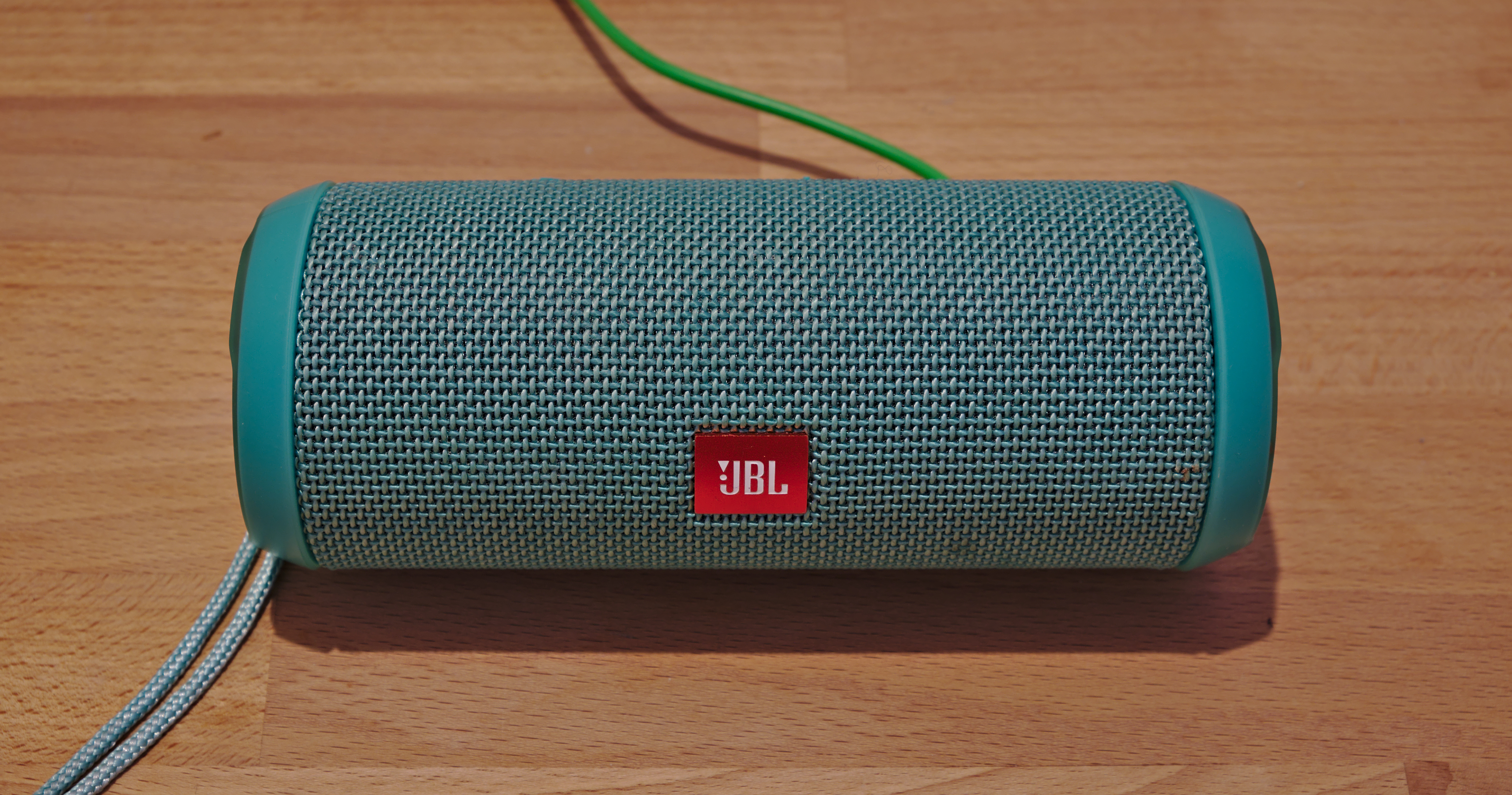
You bought the speaker for the kitchen. Then it migrated to the home office, so you paired it to the laptop. Now it lives on the patio, tethered to a tablet. And every time you carry it from one room to the next, the same small ritual plays out: the speaker grabs whatever device it saw last, you dig into a Bluetooth menu, tap "disconnect" or reconnect by hand, and lose ninety seconds you will never get back. Multiply that by a few times a day and the wireless speaker starts to feel a lot less wireless than the box promised.
The confusion is understandable, because "pairing a speaker to multiple devices" actually describes three different things that behave nothing alike. One is pairing your speaker to several devices over time and switching between them manually. Another is multipoint — keeping the speaker actively connected to two devices at once and hopping between them without lifting a finger. The third is the reverse: pushing audio from one phone to several speakers, the party-mode scenario.
Each has its own rules, its own hardware requirements, and its own failure modes. Here is how all three work in 2026, which speakers support what, and how to stop the reconnect dance for good.
Paired vs. Connected: The Distinction Behind Every Headache
Almost every Bluetooth frustration traces back to one overlooked difference: pairing is not the same as connecting. Pairing is the one-time handshake that saves a device's identity in the speaker's memory. Connecting is the live audio link. Your speaker can remember a long list of paired devices — soundcore notes that a phone or laptop may keep "dozens of devices paired or saved in its memory" — yet it only plays from the ones it is actively connected to at that moment.
That is where speakers and headphones part ways. As soundcore's connection guide puts it, "a standard Bluetooth speaker typically accepts a connection from only one source device at a time," even though the same speaker may have five or six devices paired to it. The underlying plumbing is a Bluetooth "piconet," in which one primary device coordinates up to seven active peripherals. Your phone or laptop sits on the primary side and can comfortably juggle five to seven simultaneous links, but a basic speaker sits on the peripheral side and answers to exactly one at a time.
So when you walk your speaker from the kitchen to the office and the music will not switch, nothing is broken. The speaker simply reconnected to the last device that claimed it — usually your phone in your pocket — while the laptop waits in line. Internalizing that one-source limit is the difference between fighting your gear and working with it.
How to Pair a Speaker to a Second (or Third) Device
Adding another device is straightforward once you accept that a basic speaker holds only one live connection. The first move is always the same: put the speaker into pairing mode. On most models that means holding the Bluetooth button — or a dedicated pairing button — until the indicator light blinks rapidly and often chirps. That fast blink means the speaker is discoverable, not merely powered on.
From there the steps depend on the new device:
- iPhone or iPad: Settings > Bluetooth, wait for the speaker to appear under "Other Devices," and tap its name.
- Android: Settings > Connected devices > Pair new device, then select the speaker.
- Windows 11: Settings > Bluetooth & devices > Add device > Bluetooth.
- Mac: System Settings > Bluetooth, then click Connect next to the speaker.
The catch is switching back later. On a single-connection speaker, hitting play on the second device does not automatically evict the first. You usually have to turn off Bluetooth on the device you are leaving, or choose "Disconnect" in its Bluetooth menu, before the speaker will latch onto the other one. If a particular device keeps hijacking the speaker the instant it wakes, using "forget this device" on the gadgets you rarely use is the cleanest fix.
Multipoint: Two Devices, One Speaker, No Menu-Diving
Multipoint is the feature that makes the reconnect dance disappear. Bose defines it as technology that "lets you simultaneously connect ... to two source devices," and the payoff is exactly what the name promises: the speaker stays live to, say, a laptop and a phone at the same time.
The magic is in the handoff. Instead of disconnecting anything, you simply "pause the audio on one and press play on the other," in Bose's phrasing, and the speaker follows you. Within Bose's ecosystem you switch the feature on in the Bose app under Settings > Bluetooth Connections, where a single toggle turns it on or off. There is one honest limitation to file away: multipoint does not blend two streams. Because of an automatic media hierarchy, you "generally can't stream audio from both devices at the same time" — an incoming call or a video simply takes over the connection.
Standard multipoint tracks two devices; some newer gear stretches to three. Two of 2026's most popular portables show how mainstream the feature has become. Per SoundGuys' head-to-head testing, both the $269.99 Bose SoundLink Plus and the $199.95 JBL Charge 6 ship with Bluetooth 5.4 and multipoint pairing built in. A tap-free handoff between your work laptop and your phone is now a mid-range expectation, not a premium indulgence.
A speaker that merely "pairs with multiple devices" is not the same as one that supports multipoint. The first still connects to one source at a time; only the second stays live to two. If seamless switching matters, look for the word "multipoint" by name on the spec sheet — nothing else guarantees it.
The Three Ways to Share a Speaker, Compared
| Approach | What it does | Devices at once | Requires | Best for |
|---|---|---|---|---|
| Manual re-pairing | Saves many devices, connects to one | 1 active | Any Bluetooth speaker | Occasional switching |
| Multipoint | Stays live to two sources, auto-switches | 2 (some 3) | Speaker that lists multipoint | Laptop + phone, daily |
| Auracast broadcast | One source streams to many receivers | Unlimited, in theory | LE Audio + Auracast on both ends | Group listening, venues |
The practical read: manual switching works on virtually any speaker and costs nothing, multipoint is the sweet spot for a two-device desk-and-phone rhythm, and Auracast is the emerging one-to-many standard that is still finding its footing. Most people never need to leave the first two rows.
Connecting One Device to Multiple Speakers
Flip the question around — one phone, several speakers — and the rules change entirely. Classic Bluetooth stereo pairing tops out at two speakers, typically a left-and-right pair from the same brand; try to add a third and the first one drops off. Manufacturers route around that ceiling with proprietary "party" modes. Anker's PartyCast 2.0, for instance, can chain more than 100 compatible soundcore speakers into a single synchronized system, and JBL's app links multiple Auracast-enabled JBL speakers to blanket a larger space with one playlist.
Phone makers offer their own shortcuts. On supported Samsung Galaxy phones, the Dual Audio feature lets you pair two Bluetooth speakers, then choose them from the Media panel and adjust their volume together or separately — no extra app required. If you already own a Galaxy and a spare speaker, it is the quickest route to rough stereo coverage across a room.
Auracast: The One-to-Many Future, Honestly Assessed
The technology poised to dissolve most of these limits is Auracast, the broadcast feature built on Bluetooth LE Audio. Instead of a point-to-point link, a phone, TV, or speaker broadcasts a stream that "an unlimited number of connected devices" can join, so long as they are in range and compatible — roughly 20 to 30 meters indoors, and up to 100 meters in the open. It is already running in airports, museums, and lecture halls, where one source feeds every compatible receiver in the room and, notably, aids listeners who use hearing aids.
The honest caveat is that support in 2026 remains uneven. On the transmit side, soundcore's Auracast explainer lists Samsung's Galaxy S23 and later, the Galaxy Z Fold and Z Flip 5 and 6, and Tab S9 FE tablets as capable, provided they run a recent One UI build; the requirement under the hood is Bluetooth 5.2 or later plus the Public Broadcast Profile. Speaker support is thinner — soundcore, for one, builds Auracast into only its Rave 3S party model, while JBL bakes it into the Charge 6. And there is a hard platform gap: as Venucast's 2026 field check bluntly puts it, "iPhones do not support Auracast. They cannot receive Auracast broadcasts" as of early 2026. The shopper's shorthand is simple: if the packaging does not say "Auracast" in writing, assume the device cannot do it.
When the Handoff Still Fights You
Even good hardware occasionally sulks. If a speaker refuses to switch, start by updating its firmware through the companion app — multipoint and Auracast behavior are frequently patched well after launch. If two devices keep wrestling over the connection, turn Bluetooth off on the one you are not using, or "forget" the speaker on stale devices so it stops auto-grabbing the link the moment it wakes. And keep the media-hierarchy rule in mind: a paused video tab on your laptop can quietly hold priority over your phone, so fully stopping playback on the idle device is often all it takes to let the other one through.
None of this demands new gear. Match the method to the moment — manual pairing for the occasional switch, multipoint for a two-device daily grind, a party mode or Auracast when one source needs to reach a crowd — and the speaker finally behaves like the untethered device it claimed to be on the shelf.